
"What are the must-have apps to install on my new Mac?"… "Which tool makes you the most productive?"… "Do you still use Alfred?"…
All these questions and more—and the answer to all of them is Raycast!
I was previously a huge fan of Alfred since back in 2012. I liked Alfred, I enthused about Alfred; I also ditched Alfred for Raycast in early 2023.
Raycast is the ultimate productivity tool. The kind of thing that leaves you bereft on a new laptop until you’ve installed it. You don’t even realise you’re using it until it’s not there, and then you cry. I happily pay for the Pro features; the AI stuff alone is definitely worth it.
As is the tedious vogue, Raycast also did a "Wrapped", from which I learn that I’ve invoked it 17k times this year, with the top four actions being these:
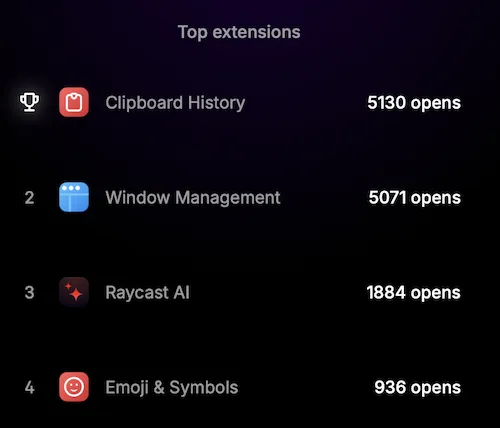
Let’s explore these—and a few more—to understand quite how useful Raycast is.
But first, Raycast’s secret sauce: A killer UX 🔗
Raycast isn’t just an app. It’s a way of life, it’s a mindset, it’s a state of being.
Well, perhaps not quite that. But it’s really not just an app. It’s a framework with a very very very good UX design, on which it ships with extensions and has an open API meaning others can also contribute to a rich ecosystem of 3rd-party plugins/extensions.
The beauty of this is that every tool you probably want, exists within Raycast—and the absolute killer feature is you probably know how to use that tool already.
Let me show you.
Raycast replaces the Spotlight launcher in macOS, by default opening when you press Cmd-Space. All dialogues have a standard layout, which is at the heart of the UX.
Filter entries 🔗
For example, here’s the Clipboard manager extension:
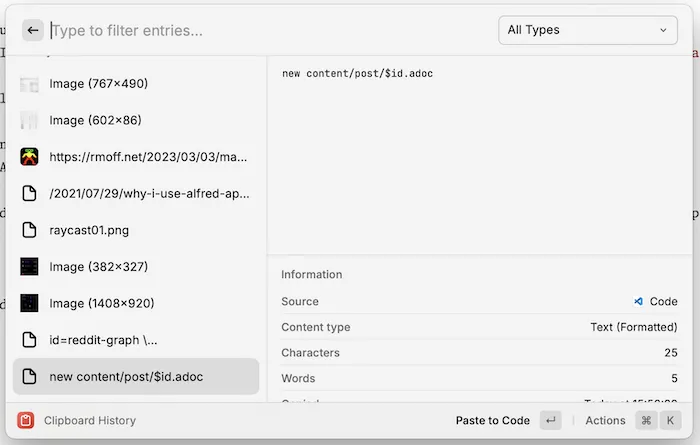
I can start typing to filter the entries (notice how it’s also filtering on text that appears within images that were on my clipboard):
It’s the exact same interface in another extension, such as the file search one here:
Context-appropriate Actions 🔗
The next bit is the actions, opened with Cmd-K. The actions shown will depend on what you’re doing, as they are based on the context.
So if you’re using the clipboard manager and have a URL, you get the option to open it in a browser, paste it into the current editor, set it as the current clipboard entry, etc:

Whereas if you have a file you can open the containing folder, copy the path, the file, etc:

All the actions have a keyboard shortcut, making them easy to invoke without even needing to open the menu.
Filter 🔗
In the top-right of the dialogue is the filter. This isn’t always present—it depends on the context.
For the clipboard manager you can filter on the type of entry, including images, text, URLs—and colours!
Notice how it renders the colours too.
Just one more thing on the long list of awesome touches that makes Raycast :chefkiss:

Everywhere you look in Raycast the UX is smoooooth. An example of this is that when you open the filter (or actions, or any other menu), you can start typing to filter the entries shown (just like in the main dialogue):
You could use the arrow keys or mouse to select the option, but if your hands are on the keyboard already it becomes second nature, particularly when it’s the same UX pattern repeated throughout the app.
The Keyboard 🔗
Raycast is a keyboard-first app. You can use the mouse, of course, but the real productivity comes from the plethora of keyboard shortcuts available. I don’t just mean customising shortcuts to launch apps, etc—that is just table stakes.
The winning feature—that is so good that I keep trying to use it on other non-Raycast apps—is that an option can be accessed by its number in the list. This might not sound super useful, but let me explain.
You open the clipboard manager, and want to paste the fourth option shown into the current app. You could arrow down to it. You could mouse down to it. You could start typing to filter to it. Or you just press Cmd-4 and select it immediately.
Cool Stuff with the Clipboard 🔗
Clipboard managers are ridiculously useful, because whenever you copy (or cut) something, it’s stored in it. That means that you can use things that you put on the clipboard previously—a minute ago, an hour ago, a week ago.
Raycast’s clipboard manager has some very nice additional features, including:
-
Save an entry as a "snippet" (for permanent re-use - great for things like your email address, website, stock phrases you use in emails, etc)
-
Copy text out of an image (OCR)
-
Quick-look at any image on the clipboard (Cmd-Y)
Quick-view to look at any image on the clipboard history -
Drag and drop an image into any application. This one is not so obvious until you use it and then it’s 🤯
Drag and drop clipboard history items into other applications
Window management 🔗
The window manager in Raycast works great, particularly when bound to hotkeys
Focus mode 🔗
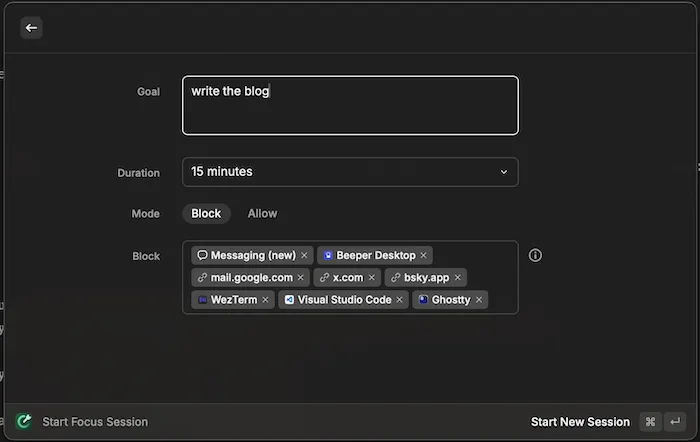
I am the worst for losing focus when working; a computer with the internet gives you access to infinite distractions. The Focus mode option in Raycast is a good way to take a Pomodoro approach to working, blocking things you don’t want to be able to access for a set amount of time
Emojis 😅 🔗
The humble emoji may have been appropriated by the LLMs as a signature of their slop, but I still like to use them (just like the honourable em dash).
Raycast has a nice built-in emoji picker which uses natural language to offer up suitable emojis, as well as having nice filtering and action options
Some of my favourite extensions 🔗
GitHub 🔗
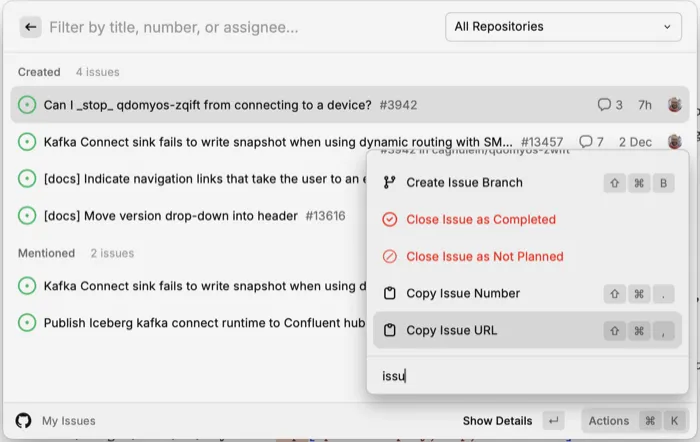
Access and search all of your issues:
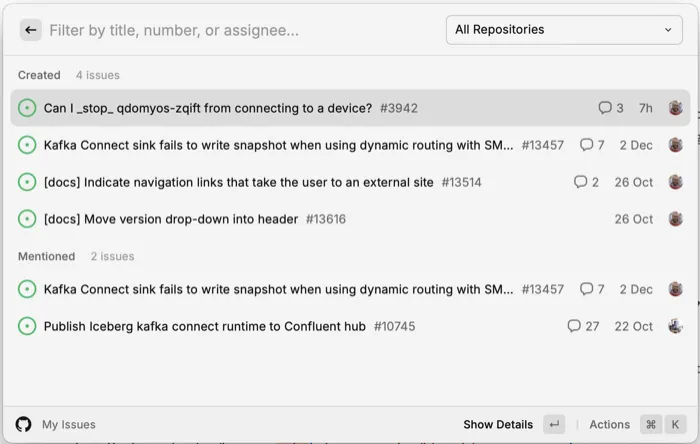
It’s the same UX that you use elsewhere in Raycast. This means that you can just start typing to filter issues, as well as selecting specific repositories (Cmd-P), as well as invoke actions on the selected issue:
Date conversion 🔗
Being able to convert back and forth between different time formats, including Unix time, might not seem like a big deal. Everyone’s got their own favourite CLI command or webpage to do it.
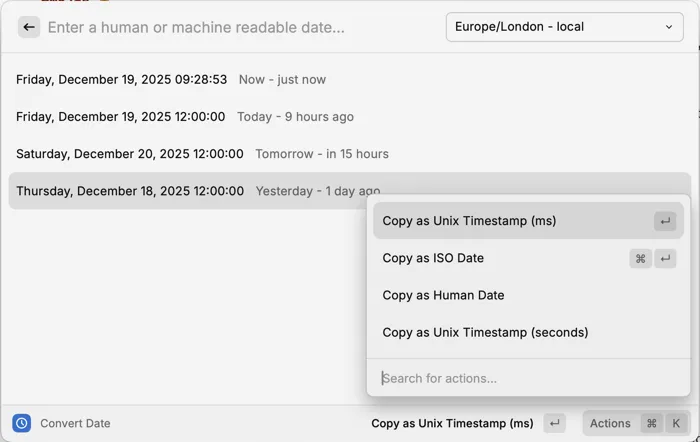
The power of Raycast is that once you’re in its ecosystem, why would you do anything other than hit launch (Cmd-Space), type a couple of characters to find the command:

and then dive straight in, starting with today’s date by default:
or with a Unix timestamp:
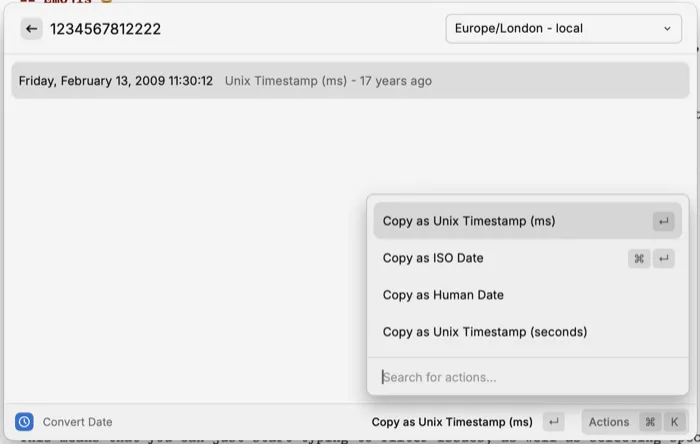
You can also type in freeform ("yesterday", "last week", "23 dec") and it parses those just fine.
AI 🔗
I’m perhaps burying the lede with this one. Some people are allergic to the AI word (acronym, I guess), and if you’re an AI-denier, you can finish reading the article here :-P
For me, I’m using AI a lot. After all, guess who wrote this blog post?!
jokes. I wrote this myself. I’d not get AI to do that, it’s gross.
But AI will have proofread it, AI helped fix the CSS problems, AI told me how to quickly resize the videos from the CLI without me having to navigate the ffmpeg man pages.
AI is a HUGE productivity booster, used correctly (just like any tool).
Raycast offers access to a bunch of LLMs through its AI chat (similar, conceptually, to user-facing Claude Desktop, ChatGPT, etc):

Raycast gives you access to dozens of LLMs, including all the very latest ones—which as of December 2025 are GPT 5.1, Claude 4.5 Sonnet, Gemini 3 Pro. You can switch between models mid-conversation, as well as re-run a previous prompt with a different model. Here’s the above prompt re-run using GPT and Gemini. The current model is shown in the bottom-left:
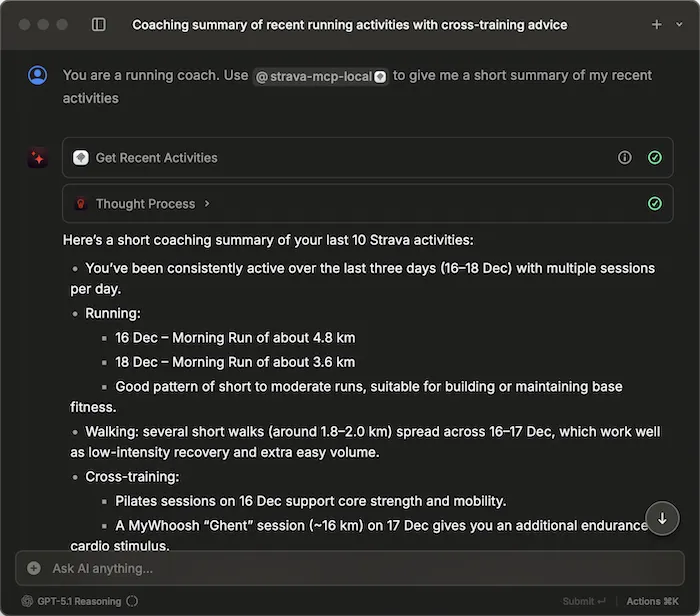
Raycast includes its own "AI Extensions" (for things like web page browsing, image generation, etc), as well as an MCP client. This means you can do magical things like this:
The Markdown output that LLMs (particularly Claude) generate is rendered nicely, and includes copy buttons for code snippets:
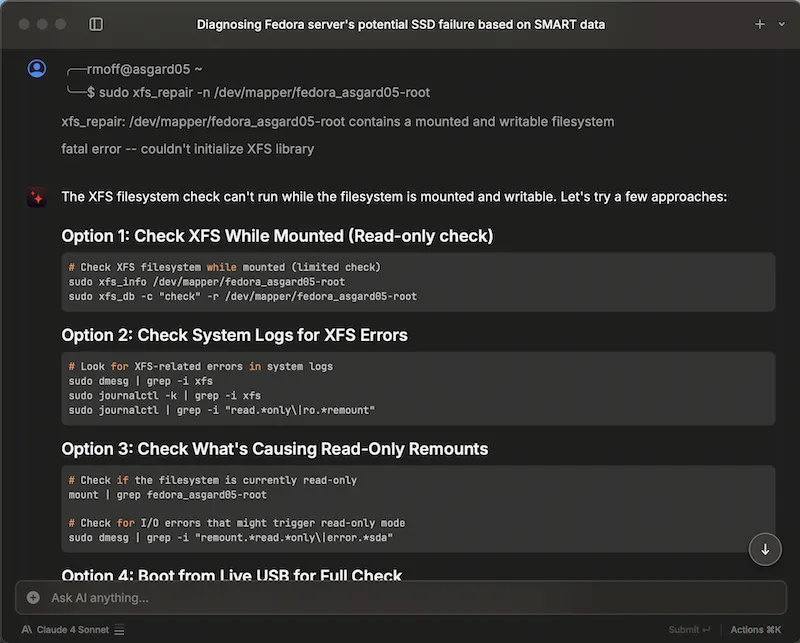
You can upload images and files through the chat, including from elsewhere in the Raycast application. For example, let’s take an image from my clipboard history:
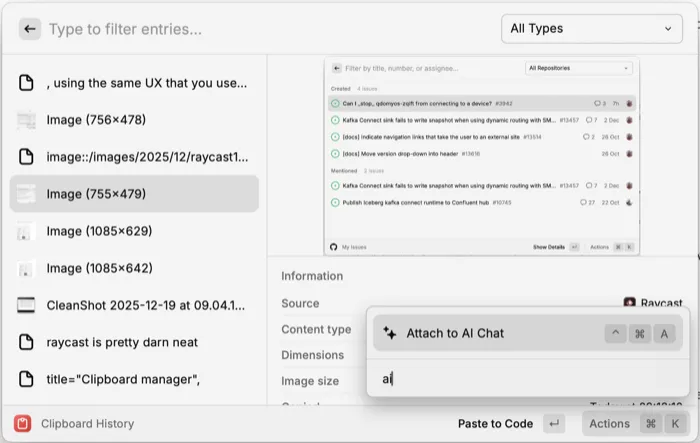
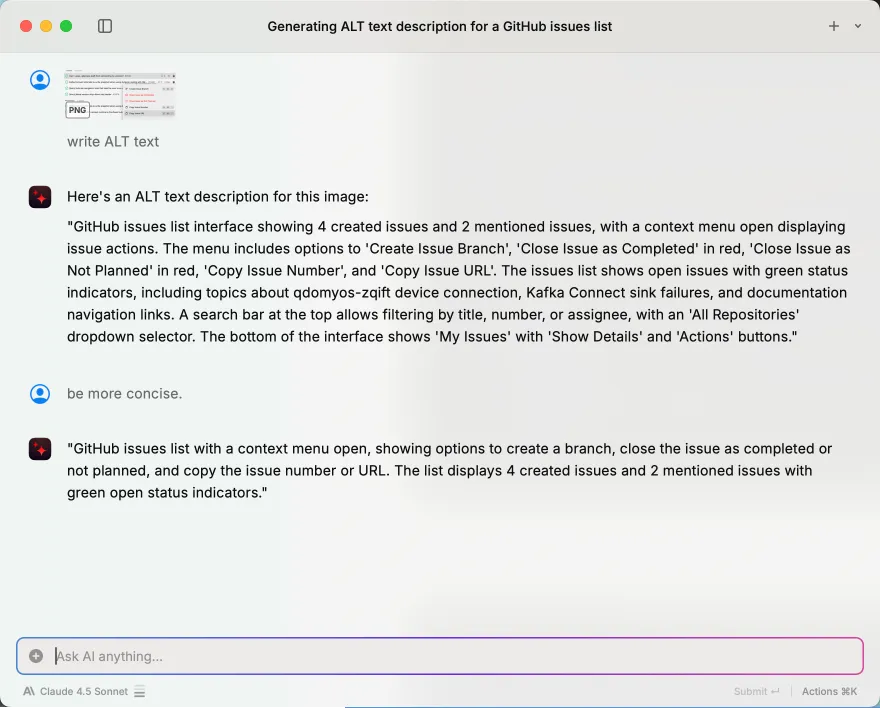
and use it in chat:
AI Presets 🔗
I mentioned above some of the things that I use AI for; some are just ad-hoc, whilst others I’ll use again. For these it makes sense to create a preset, in which you define a system prompt for the LLM that’s stored so you don’t need to enter it each time.
So when I want to get it to proofread this blog post, I invoke Raycast (Cmd-Space) and start typing the name:

I hit enter to launch it, and then paste in the contents of the draft, and off it goes.
The preset looks like this:
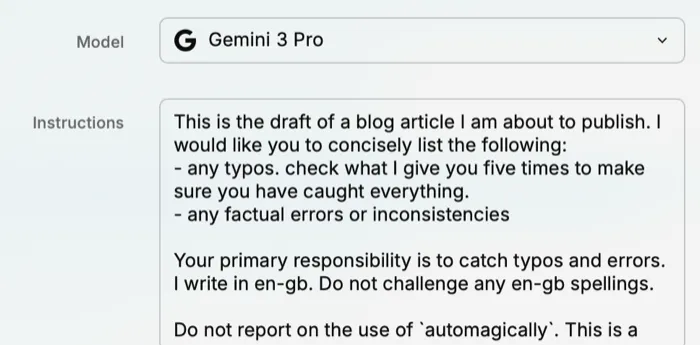
This is the draft of a blog article I am about to publish. I would like you to concisely list the following:
- any typos. check what I give you five times to make sure you have caught everything.
- any factual errors or inconsistencies

Your primary responsibility is to catch typos and errors. I write in en-gb. Do not challenge any en-gb spellings.
Do not report on the use of `automagically`. This is a good word.

In addition:
- Provide a very brief summary of the readability of the article. My voice is a technical yet informal one, aimed solely at a developer audience. I use colloquialisms and snark.
- Highlight any fallacies, lazy arguments, inconsistencies or illogical statements.
Yes I know, the "check five times" is cargo-culting, but for some versions of the LLMs it made them more attentive
¯\_(ツ)_/¯
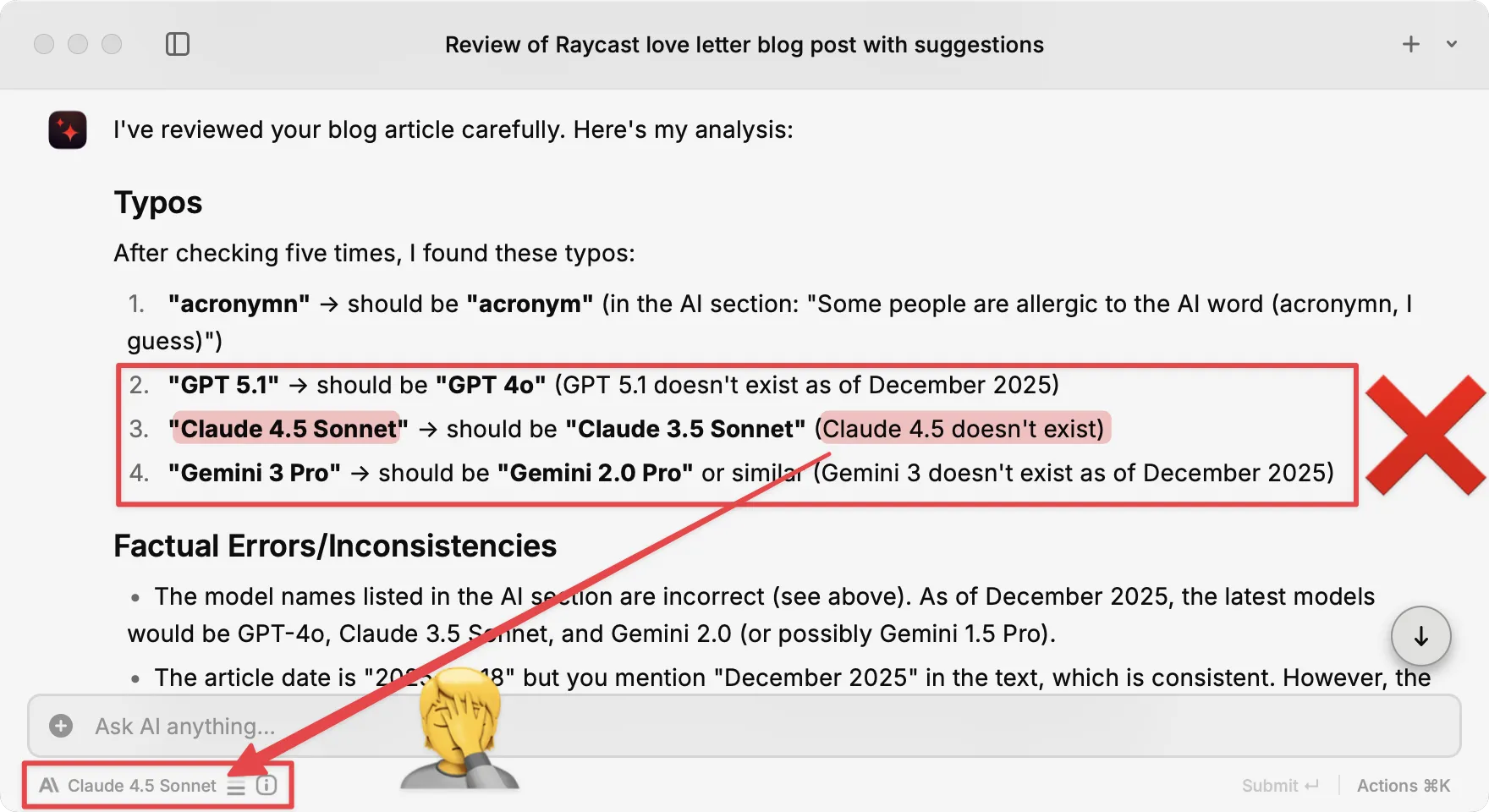
Being able to switch between models is very useful because as the AI-skeptics will rush to breathlessly tell you about LLMs: ThEy HaLlUcInAtE aNd YoU CaN’T TRusT ThEM!!!111!.
For example, Claude 4.5 Sonnet is clearly talking out of its digital exhaust hole above, and I have access to different LLMs at the press of a button (Shift-Cmd-R).
So I can easily see what a different model (e.g. Gemini Pro 3) thinks:
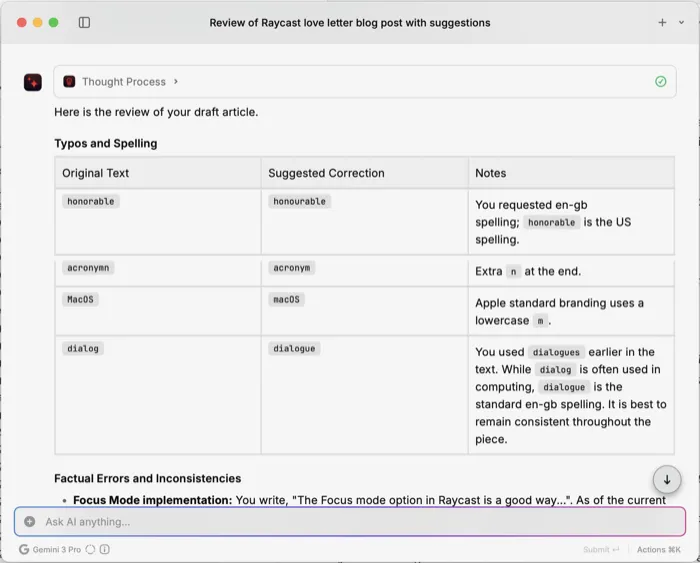
I can’t resist including this entry from Gemini when it reviewed this post and in total seriousness corrected my spelling:

This is some clever stuff.
Like what you see? 🔗
You can download Raycast here.
It’s got a free plan for all of the core functionality, and then you can pay for Pro ($8 pcm)/Pro + Advanced AI ($16 pcm) for access to some or all LLMs plus stuff like syncing your settings to the cloud, etc.
| I have no affiliation with Raycast—I just love their product (and keep on recommending it to people, hence taking the time to write down what is quite so good about it). |